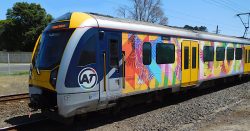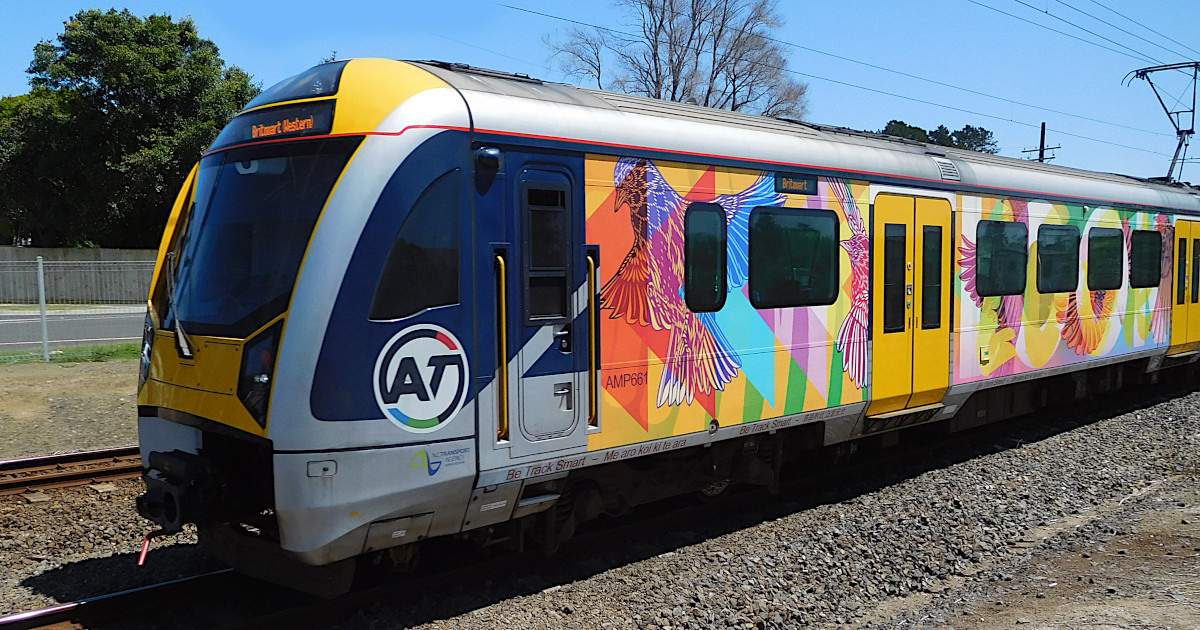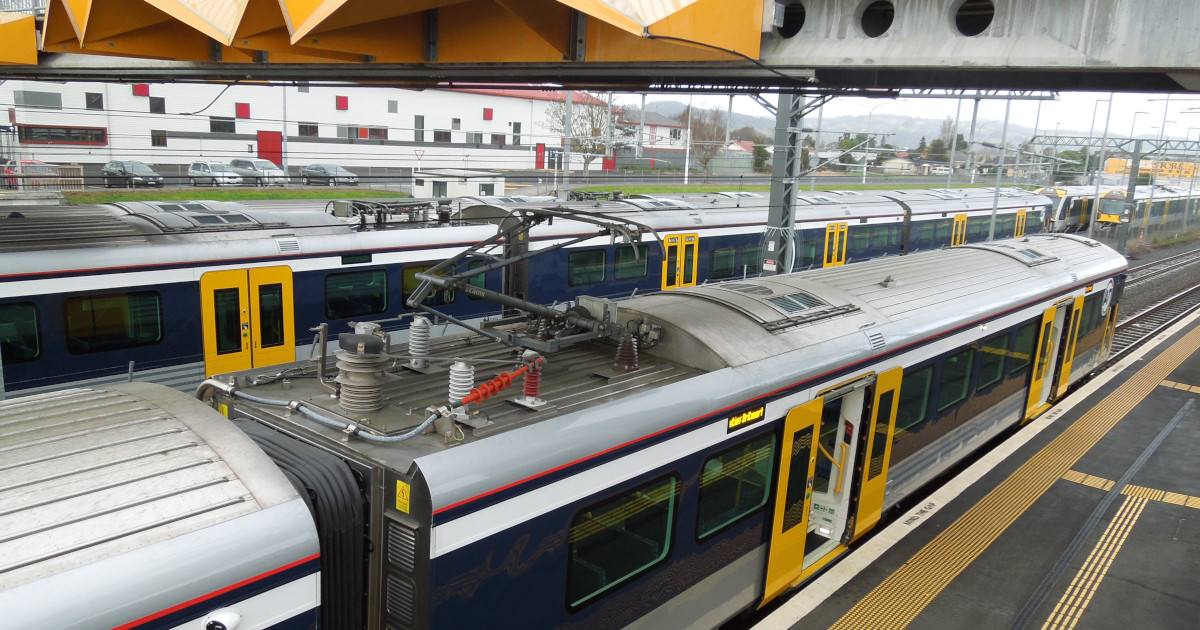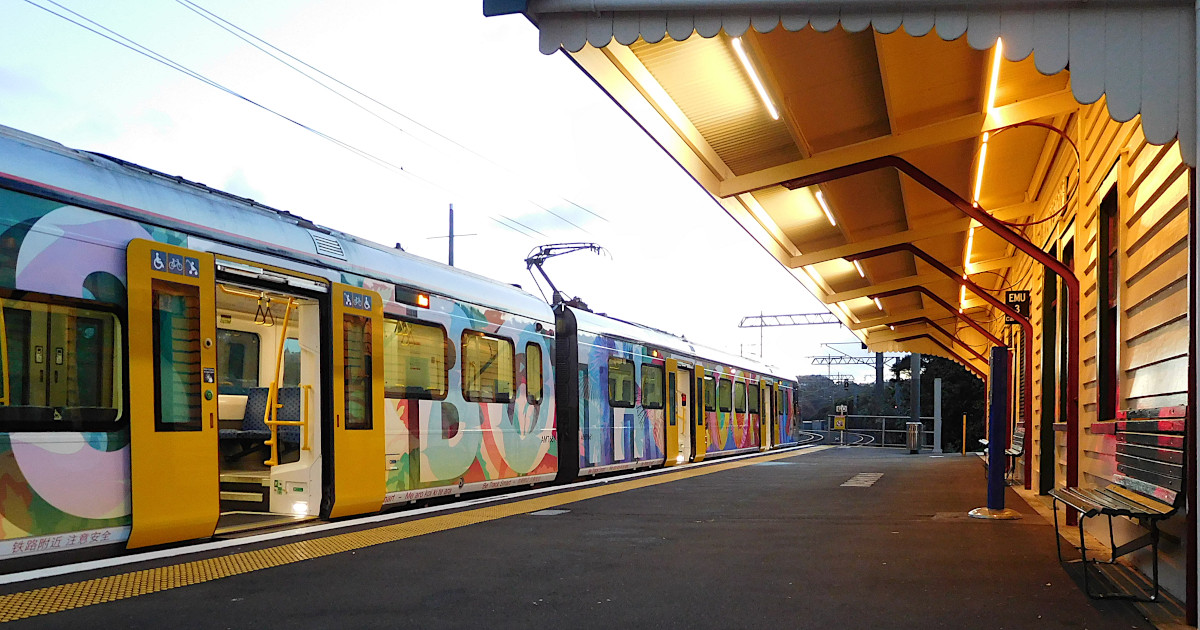
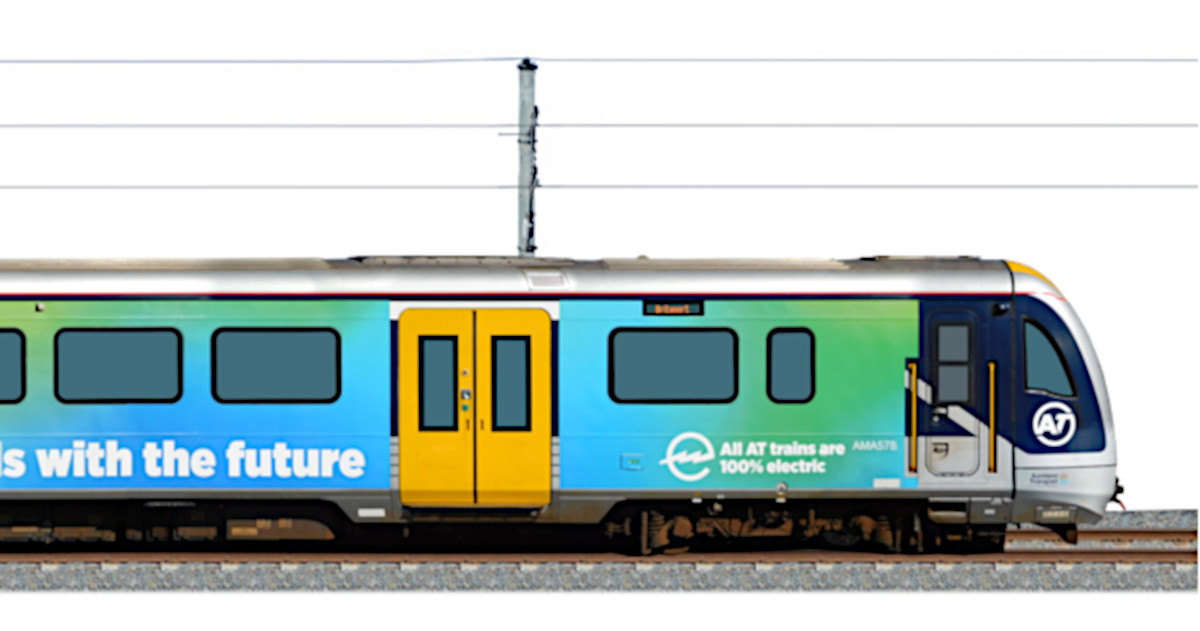
I was making up posts about the special wrapped trains that run on the Auckland metro rail network – for example AM661 – Be Track Smart.
In preparation for this I have been photographing the sides and front view of these trains. I then joined all these side view photos together to form a full side view of each wrapped train.
Clearly the full side view of the train is the main feature of the post. The thing is that a train is very long in relation to it’s height, so if you put the full view on a post it doesn’t look all that great and is pretty underwhelming:

It seemed to me what I needed was a scrolling image of the train moving across the page


Requirements
Its important to note that I am not creating some sort of generic plugin, this is a very specific solution to a very specific problem. This made things much easier and more customizable.
The train needs to scroll smoothly from one side to another in a continuous loop. It should emerge from one side and exit the other side without another loop beginning. In other words this should not happen:

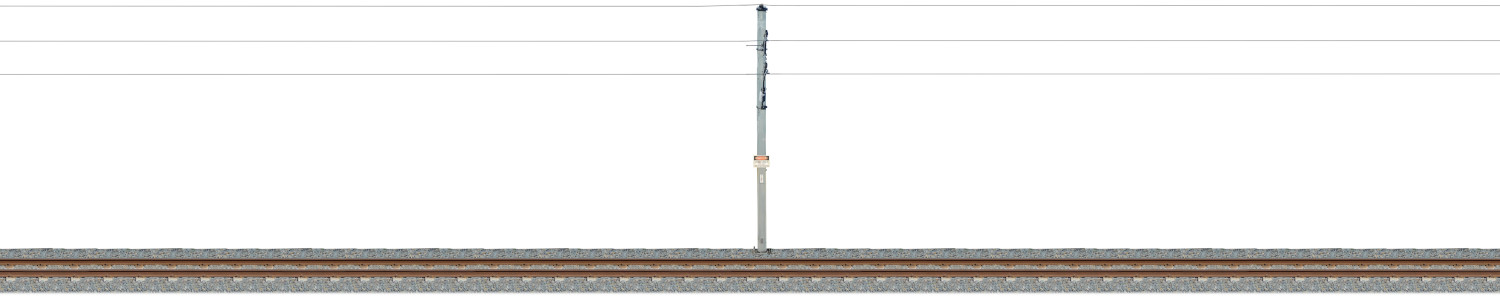
It should have two layers, the back layer would feature the tracks, pylon and wires, and the front layer should be just the train.
The train should align perfectly with the background, so that the wheels of the train sit perfectly on tracks, and the pantograph aligns with the wire attached to the pylon.
Add custom css to your theme
We need to add some custom css, and to ensure it is available across all your posts. We will add it at the theme level.
Select “Appearance | Editor | Styles” then click on the “Edit styles” icon and then click on “Additional CSS”

In the addition CSS paste the following:
/*
* Zoyinc scrolling marquee
* ------------------------
* Thanks to inspriation from Jamie Marsland
* https://www.pootlepress.com/2025/04/how-to-create-a-seamless-scrolling-marquee-in-wordpress-using-core-gutenberg-blocks/
*/
@keyframes zoyinc-animation-train-marquee {
  0% { transform: translateX(-100%); }
  100% { transform: translateX(0%); }
}
.zoyinc-train-marquee-style {
  overflow: hidden;
  white-space: nowrap;
  position: relative;
}

.zoyinc-train-marquee-style > .wp-block-group {
  display: inline-flex;
  gap: 2rem;
  min-width: max-content;
  align-items: center;
  animation-timing-function: linear;
  animation-iteration-count: infinite;
  animation-name: zoyinc-animation-train-marquee;
  animation-duration: 35s;
}
.zoyinc-train-marquee-train-image  img {
  height: 300px;
}
.zoyinc-train-marquee-train-front-padding-image  img {
  height: 300px;
}
.zoyinc-train-marquee-train-rear-padding-image  img {
  width:clamp(300px,150vw,900px);
  height: 300px;
}
Don’t forget to save your changes – you will be prompted to save twice, once seems to be for style and once for the site.
Bearing in mind that all my train images are the same size things become much easier. I use two train specific images, both were created based on Full Length Train Photo Using Multiple Stills post. Both images use the same base image which was cropped against the purple squares, then resized to 3387×300.
Create the images
The images are comparatively large but it needs to be this high to get the high quality images we need.

Background image
This has the pylon and wires layer, basalt and track layer, and white layer visible. This image only needs to be as wide as the marquee, which for me is 1200. Taking into account that WordPress scales images greater than 2500 , I thus crop the background so it is in the middle and only 1500 wide, but still the same 300 high as the train image. Thus crop it as below:

Giving an image 1500×300:

Add this to the sites Media library.
Train image
This image only has only the train layer and pantograph up layer visible – so transparent background. This needs to be saved as a png because we need transparency. This image is 3387×300 :

Upload to your WordPress site
By default WordPress will automatically scale images wider than 2500 pixels. I fought this quite a bit but I honestly think the most robust solution is to upload the image directly to your WordPress site rather than adding it as Media, this way it won’t scale it – this is very important because if you don’t do this WordPress will use a very scaled image and it will look blurry.For my situation I used sftp, but whatever works for you:

One question is what folder to put it in. For this I would look at the background image you just uploaded this to the media page, and upload the train to the same folder and use the url for the background image changing it to use the train image filename.
So in my case the file location was:
/srv/www/zoyinc/wp-content/uploads/2026/04/AM578OneNZMarquee01.png
The url is:
http://www.zoyinc.com/wp-content/uploads/2026/04/AM578OneNZMarquee01.png
Test the URL for the train image works!
Create the marquee
Next create a hierarchy comprising three layers of groups with each bottom group containing an image, as below – this will be the scrolling marquee:

To make it easier I just create the first image and duplicate it’s group twice to get the three identical images.
We need to change the middle image to use the url we created for the transparent train image. Click on the image and select “Replace” and then under “Current media URL” click on the edit button:

Then put in the url you created, and tested, for the transparent train image, and click on Save:

After saving the image, click the image settings and you can see additional settings. Set left to 50% and top to 0% – there is no save to this. After updating click somewhere else to close the dialog:

Lastly change the bottom image to a green square image
Now you should see this:

For the top level group, add the following “zoyinc-train-marquee-style zoyinc-train-marquee-train-image” in “Additional CSS Classes”:

Staying on the top level group, edit the styles for this block. Click on the “Styles” icon and then under “Background image” click on “Add background image”:

Then it should look like:

For the pink image you need to add the CSS class “zoyinc-train-marquee-train-rear-padding-image”:

For the transparent train image set the css to “zoyinc-train-marquee-train-image”
For the green image do the same thing but use the css “zoyinc-train-marquee-train-front-padding-image”
In the settings for Group blocks there is a layout setting “inner blocks use content width”. This should be disabled for all the groups in the marquee except the top level group!

For the 3 images you need to explicitly set the padding and margin to zero – there seems to be some sort of hidden default.

You can save the current page and if you preview it you will see the scrolling train with a green section at the start and red section after the train, these act as padding to ensure the train exits and enters cleanly. By having different colored sections you can tell which is which.
If everything is working, you should now change both the red and green images to a transparent 100×100 image and do a save and preview
Save as a pattern
You may well wish to save this as a pattern so it can be used in other pages.
Right click the top most group and select “Create pattern”:

My suggestion would be to give it a good name, put in a suitable category or create a new category and disable “Synced”. You probably need synced disabled as you need to change the train image each time: